Budgeting
Free Budget Template for Google Sheets: How to Copy and Use It
How to open a free budget spreadsheet in Google Sheets, make your own copy, fill in input cells, and avoid common formula-breaking mistakes. Free download included.
On this page
- What you need
- Step 1: Download the template
- Step 2: Upload it to Google Drive
- Step 3: Save it as a Google Sheet
- Step 4: Read the instructions tab
- Step 5: Replace the example data
- Step 6: Check the results
- Using it on your phone
- Tips to keep your budget template working
- Common questions about formulas in Google Sheets
- What the free Lite version does
- Pair it with other trackers
- Privacy tips
- The bottom line
- Troubleshooting common issues
- Make it a weekly habit
Google Sheets is free, works on phones and computers, and saves automatically, which makes it one of the easiest places to keep a budget. This guide explains how to take a budget template file (like our free Paycheck Budget Lite) and turn it into your own working Google Sheet, plus tips for keeping it accurate.
What you need
- A free Google account
- The template file (often an .xlsx file)
- About two minutes
Step 1: Download the template
Download the .xlsx file to your computer or phone. Our free Paycheck Budget Lite is available from the download box on this page. Templates in .xlsx format work in Google Sheets, Excel, and LibreOffice Calc.
Step 2: Upload it to Google Drive
- Go to Google Drive (drive.google.com) and sign in.
- Click New → File upload and choose the .xlsx file.
- When the upload finishes, double-click the file. It opens in Google Sheets in "Office editing" mode.
Step 3: Save it as a Google Sheet
In the menu, choose File → Save as Google Sheets. This creates a native Google Sheets copy, which works best on phones and with sharing. Google explains the process in its official help article on converting Office files.
Step 4: Read the instructions tab
Good templates include a short instructions tab. Read it once before typing. Ours use mint-highlighted input cells so you know exactly where to type. Everything else is formulas.
Step 5: Replace the example data
Templates often ship with example data so you can see how they work. Replace it with your own:
- Take-home pay (from a real pay stub)
- Your first payday
- Each bill's name, amount, and due day
Type over example values rather than deleting rows. Deleting rows can break formula ranges in some templates.
Step 6: Check the results
Once your numbers are in, look at the leftover for each paycheck. If something looks odd, check that dates are real dates (Google Sheets aligns dates to the right by default; text aligns to the left) and that amounts don't include stray characters.
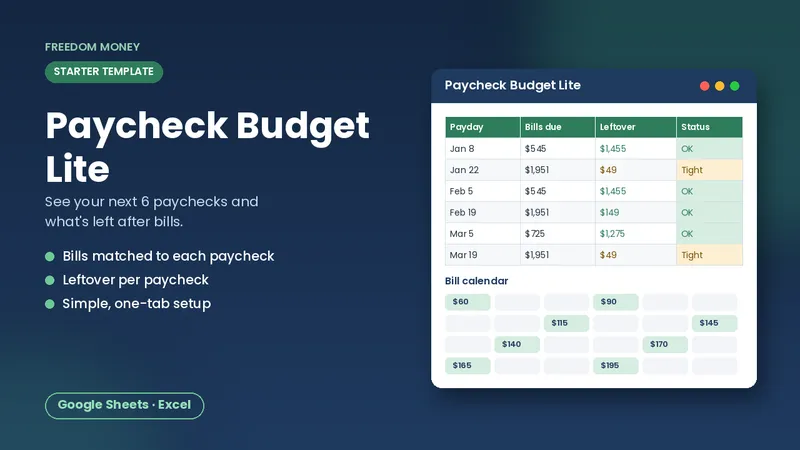
Free: Paycheck Budget Lite
A simple starter spreadsheet for Google Sheets or Excel. List your take-home pay and bills and see what each paycheck has left. Free, instant download.
Download the free templateUsing it on your phone
Install the Google Sheets app. Your budget syncs automatically. Phones are great for quick updates on payday. For bigger changes, a computer is easier.
Tips to keep your budget template working
- Only type in input cells. Typing over a formula breaks calculations. If you do it by accident, use Edit → Undo or check File → Version history to restore an earlier version.
- Make a backup copy before big changes: File → Make a copy.
- Don't sort part of a table. Select the whole table before sorting, or the rows get scrambled.
- Keep currency formatting. If a cell shows a date instead of a dollar amount, change its format via Format → Number → Currency.
- Share carefully. If you share with a partner, use "Editor" access only for people who will update it.
Common questions about formulas in Google Sheets
Most standard functions like SUM, IF, MIN, MAX, INDEX, MATCH, COUNTIF, and date math work the same in Google Sheets and Excel. A few Excel-only features, like some macros, don't carry over. That's why our templates use only standard functions: they behave the same in Google Sheets, Excel, and LibreOffice.
What the free Lite version does
The free Paycheck Budget Lite is a simple starter: list your take-home pay and bills, and see what's left. It's a great way to test paycheck budgeting before committing to a bigger system. If you like it, the full Biweekly Paycheck Budget adds:
- All 26 paychecks for the year from your first payday
- Automatic assignment of bills to paychecks by due date
- A bill calendar showing which paycheck pays which bill
- "Short" and "Tight" warnings
- Savings tracking per paycheck
Pair it with other trackers
Once your budget is running, other trackers fit naturally:
- Debt Payoff Tracker for snowball or avalanche plans
- Savings Goals Tracker for sinking funds and goals
- Side Income Tracker for gig and side money
Privacy tips
Your budget includes personal information. Use a strong password and two-step verification on your Google account, avoid putting full account numbers in the sheet, and be careful when sharing links. Google's account security checkup is at myaccount.google.com.
The bottom line
Download the template, upload it to Google Drive, save it as a Google Sheet, and type only in the input cells. In a few minutes you'll have a working budget that syncs to your phone. Start with the free Lite version below.
Troubleshooting common issues
- The file opens as read-only. Make sure you used File → Save as Google Sheets, then work in the new copy.
- Numbers show as text. Remove spaces or currency symbols you typed manually and let the cell format add them.
- Dates look wrong. Check File → Settings → Locale. Date formats follow your locale, so a US template works best with a United States locale.
- Formulas show errors after editing. Use Undo or Version history to go back, then type only in the highlighted input cells.
- It's slow on a phone. Use the app for quick updates and a computer for bigger changes.
These fixes cover most problems people hit in the first week. Once your copy is set up, updating it on payday takes only a few minutes.
Make it a weekly habit
A template only helps if you open it. Pin the sheet in the Google Sheets app, set a phone reminder for every payday, and keep the first few sessions short: confirm the paycheck, check the bills it covers, and move savings. Once that feels routine, add tracking for spending categories or a savings goal. Building the habit in small steps makes it much more likely you'll still be using the budget months from now.
Frequently asked questions
Is Google Sheets free for budgeting?
Yes. Google Sheets is free with a Google account and works on computers and phones.
Can I open an Excel budget template in Google Sheets?
Yes. Upload the .xlsx file to Google Drive, open it, and choose File then Save as Google Sheets.
What if I accidentally delete a formula?
Use Undo, or restore an earlier version from File then Version history.
This guide is general educational information, not financial, tax, legal, or insurance advice. Examples are illustrations, not predictions. See our disclaimer.