Budgeting
Biweekly Budget Template for Google Sheets: How to Set One Up (Step by Step)
Learn how a biweekly budget template in Google Sheets works, what columns it needs, and how to assign monthly bills to the right paycheck. Free starter template included.
On this page
- Why a biweekly budget beats a monthly one
- The five parts every biweekly budget template needs
- Step 1: Set up your pay settings
- Step 2: List every bill once
- Step 3: Generate the 26 paydays
- Step 4: Assign each bill to the right paycheck
- Step 5: Watch the leftover
- What to do with leftover money
- Common mistakes with biweekly budgets
- Do it yourself or start from a template?
- A quick five-minute payday routine
If you get paid every two weeks, a regular monthly budget never quite fits. Your rent is due on the 1st, your car payment on the 15th, and your paychecks land on whatever Friday the calendar gives you. A biweekly budget template fixes that mismatch by planning money one paycheck at a time instead of one month at a time. This guide walks through exactly how to build one in Google Sheets, what each part does, and the mistakes that make most budgets fall apart by week three.
Why a biweekly budget beats a monthly one
A monthly budget assumes all your income shows up at once. A biweekly paycheck doesn't. When you budget by the month, you can look "fine" on paper and still be short on the 1st because the money that covers rent doesn't arrive until the 5th. A paycheck budget answers a more useful question: which bills does this specific paycheck have to cover before the next one arrives?
There's also a math reason. Being paid every two weeks means 26 paychecks in a typical year, not 24. That's two "extra" paychecks compared with a twice-a-month schedule, and they show up in months that have three paydays. A monthly budget hides those months. A paycheck-by-paycheck plan shows them clearly, so you can decide ahead of time what that money is for.
The five parts every biweekly budget template needs
You don't need anything fancy. A working template has five pieces:
- Pay settings: your first payday of the year and your usual take-home pay (what actually lands in your account, after taxes and deductions).
- A bill list: each bill's name, amount, due day, and how often it repeats (monthly, every paycheck, or yearly).
- A paycheck schedule: all 26 paydays, generated from the first payday by adding 14 days each time.
- Assignments: each bill matched to the paycheck that arrives on or before its due date.
- Leftover per paycheck: take-home pay minus everything assigned to it, ideally with a warning when it gets low.
Step 1: Set up your pay settings
Open a new Google Sheet and make a tab called Settings. In one cell, type your first payday of the year as a date. In the next, type your normal take-home amount. Use the amount from a real pay stub, not your salary divided by 26. Health insurance, retirement contributions, and taxes come out first, and the budget only works with money you actually receive.
If your pay changes from check to check because of overtime or shift differentials, use a conservative "normal" number here and adjust individual paychecks later. Budgeting on your best paycheck is the fastest way to come up short.
Step 2: List every bill once
Make a Bills tab with these columns: Bill, Amount, Due day, Frequency. Go through a full month of bank and card statements so you don't miss anything. Common ones people forget:
- Phone, streaming services, and app subscriptions
- Insurance that's billed monthly (auto, renters)
- Minimum payments on every card and loan
- Gas and groceries, which you'll mark as "every paycheck" instead of monthly
- Yearly costs like car registration, memberships, or software renewals
For yearly bills, either add a due month column or divide the yearly cost by 26 and save that amount every paycheck. The second approach is easier and avoids a nasty surprise when the bill hits.
Step 3: Generate the 26 paydays
On a Paychecks tab, put your first payday in cell A2. In A3, type =A2+14 and drag it down to A27. Google Sheets now lists every payday for the year. Next to each date, pull in your normal pay from Settings so you can override any single paycheck without breaking the rest.
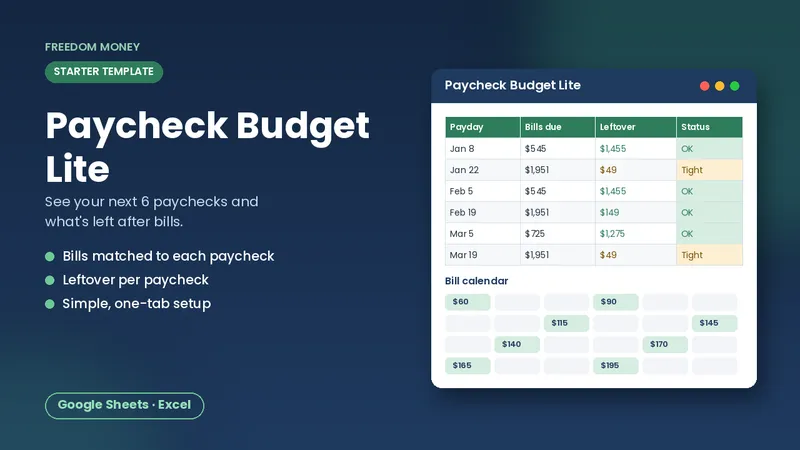
Free: Paycheck Budget Lite
A simple starter spreadsheet for Google Sheets or Excel. List your take-home pay and bills and see what each paycheck has left. Free, instant download.
Download the free templateStep 4: Assign each bill to the right paycheck
This is the part most templates skip, and it's the part that makes a biweekly budget useful. The rule is simple: a bill belongs to the most recent paycheck that arrives on or before its due date. If you're paid on the 3rd and the 17th, a bill due on the 10th belongs to the 3rd paycheck, and a bill due on the 1st belongs to the paycheck before it (from the previous month).
You can do this by hand for each month, or use formulas. A common approach is to compute each bill's next due date and then use a lookup to find the latest payday that is less than or equal to it. In Google Sheets, a MATCH(due_date, payday_range, 1) lookup on a sorted list of paydays returns the right paycheck. Our Biweekly Paycheck Budget does this automatically, including a calendar grid that shows which paycheck pays which bill.
Step 5: Watch the leftover
For each paycheck, add up everything assigned to it and subtract that from take-home pay. That's your leftover. Add conditional formatting so a negative number turns red and anything under a threshold you choose (say $100) turns yellow. That gives you a "Short" and "Tight" warning weeks before the money actually runs out.
When a paycheck is short, you have options long before the due date: move a flexible bill's due date (many lenders and utilities let you pick one), shift a little savings from a lighter paycheck, or cut that period's spending on flexible categories.
What to do with leftover money
A positive leftover isn't "extra" until you've given it a job. Decide in advance where it goes, in this order of priority for most people:
- A small starter cushion for surprises
- Extra payments on high-interest debt (see our guide to snowball vs. avalanche)
- Savings goals that have a deadline, like holidays or car repairs
- Fun money, on purpose, so the budget is something you can stick to
Common mistakes with biweekly budgets
- Budgeting gross pay. Always use take-home.
- Forgetting the "every paycheck" costs. Groceries and gas are bills too.
- Ignoring three-paycheck months. Plan them; don't let them disappear. We cover this in what to do with a 3-paycheck month.
- Building it once and never opening it again. A paycheck budget takes about five minutes each payday. Put a reminder on your phone.
- Making it too complicated. If your template needs a manual, you'll stop using it. Clear input cells and a short instructions tab help.
Do it yourself or start from a template?
Building your own is a great way to learn how your money moves, and everything above works in a blank Google Sheet. If you'd rather skip the formula work, a ready-made template saves a few hours and avoids lookup mistakes. Either way, the habit matters more than the tool: open it every payday, check the leftover, and adjust.
A quick five-minute payday routine
- Confirm the paycheck amount that actually landed and type it in if it's different.
- Look at the bills assigned to this paycheck and schedule or confirm each payment.
- Move the planned savings amount right away, before you spend anything else.
- Glance at the next paycheck's leftover so nothing surprises you.
- Note anything unusual, like a doctor's bill, in a notes column.
Frequently asked questions
How many paychecks do you get if you're paid biweekly?
Most years have 26 biweekly paydays. Depending on how the calendar falls, some years have 27. Check your employer's payroll calendar.
Can I use an Excel budget template in Google Sheets?
Yes. Upload the .xlsx file to Google Drive, open it with Google Sheets, and save a copy as a Google Sheet. Standard formulas carry over.
Should I budget by month or by paycheck?
If you're paid biweekly, budgeting by paycheck matches how money actually arrives, so you're less likely to come up short before a due date.
This guide is general educational information, not financial, tax, legal, or insurance advice. Examples are illustrations, not predictions. See our disclaimer.